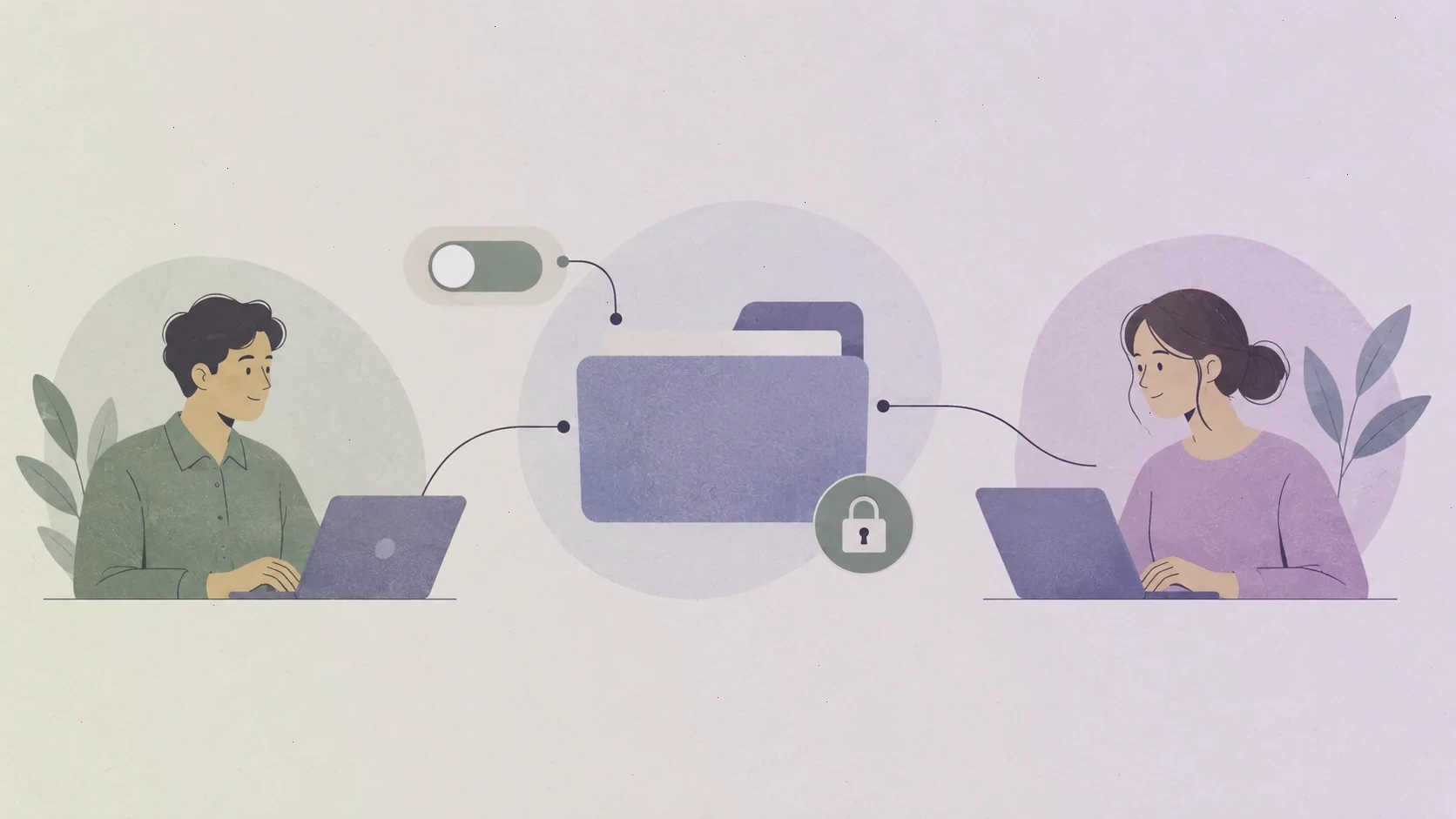
Once the tunnel is up, WatchGuard Mobile VPN with SSL hands your operating system two things: a virtual IP address and a set of routes. Those routes are the entire personality of the session. They decide, packet by packet, which traffic enters the encrypted tunnel toward the Firebox and which traffic goes straight out your local connection to the internet. Nothing about the client's behaviour afterwards can be understood without them.
This article explains the two designs you will encounter, why each exists, and how to read the symptoms that tell you which one you are living with.
The two tunnel designs
In a full-tunnel design, the gateway routes all of your traffic through the tunnel. Every website, every video call, every software update travels to the office first and exits from there. Administrators choose this for visibility and control: they can filter, log, and protect remote machines as though they were on the office LAN. The cost is paid by the user, whose home internet speed is now bounded by the office line and whose personal traffic mixes with corporate traffic on the same path.
In a split-tunnel design, only traffic destined for internal networks enters the tunnel. Everything else follows your normal local connection at full local speed. The cost is paid by the administrator, who gives up visibility into what remote machines do on the public internet. Neither design is universally right; organisations choose based on their compliance requirements, and the choice explains most differences users notice between employers.
Identify which design you are on
The test takes thirty seconds. Connect, then run a public speed test. If it matches your raw line, you are split-tunnelled. If it collapses to a fraction, everything is being routed through the office. Then check whether a public website is even reachable while connected — if not, you are on a strict full-tunnel policy where the gateway deliberately controls every destination.
This knowledge is not trivia; it is diagnosis. Once you know the design, half of all "strange behaviour" becomes predictable. A slow personal video call on a full tunnel is expected physics, not a fault. An internal-only outage on a split tunnel points at the path to the office, not your whole connection.
Why a resource stays unreachable
The most common routing complaint is a specific internal resource that will not respond while everything else works. In almost every case, the answer is that no route exists for that destination. The policy's route list was written when the network looked a certain way, and a subnet added since then — a new building, a new server segment, an acquired branch office — was never added to the mobile VPN policy.
The pattern is unmistakable once seen: one resource unreachable, everything else on the same tunnel fine, the problem identical for every remote user, and office staff unaffected. That combination is a missing route, and no amount of client reinstalling will create it. It must be added on the Firebox by the administrator, which is precisely why the client-side troubleshooting instinct fails here so reliably.
When routing rules collide with the local network
Occasionally the routes and your local network disagree. If your home router uses the same address range as the office network you are trying to reach, the operating system must decide where a destination address belongs, and the local route often wins. The symptom is an internal resource that works from the office, works from a phone on mobile data, and fails from exactly one home network — the one whose router was set up with default addressing.
The honest fix is administrative: the office subnet should not overlap with common home ranges. Workarounds exist on individual machines, but they are fragile and invisible to support, so treat them as stopgaps. If you control the home router, changing its address range to something uncommon resolves the collision permanently and benefits every VPN client in the household.
Read the routing table instead of guessing
Every operating system can print its routing table, and the output answers questions that guessing cannot. Look for the virtual adapter's routes after connecting: the destinations listed are exactly what the gateway told your machine to send through the tunnel. A destination absent from the table will not enter the tunnel no matter how long you wait, and a destination present in the table will enter it even if the gateway then refuses to forward it onward.
This distinction separates a routing problem from a firewall problem, and the two are often confused. If the route exists and the resource is still unreachable, the Firebox itself may be filtering the traffic, or the destination server may be down. The tunnel has delivered your packet to the office; what happens next is the office's business.
A note on changing things yourself
It is technically possible to add routes on your own machine, and you should generally not. Manually added routes are invisible to administrators, survive the session in unpredictable ways, and turn a diagnosable configuration into a machine-specific mystery. The routing design belongs to the gateway on purpose. If a route is genuinely missing, the durable fix is one entry in the Firebox policy that corrects every user at once — which is also why reporting the exact unreachable destination, rather than attempting workarounds, is the most useful thing you can do. For the wider product context, see the overview of WatchGuard Mobile VPN with SSL on our home page.